AI is only as smart as the context you give it. Too often, you’re stuck copy-pasting brand guidelines, searching through old folders, or settling for generic drafts that ignore your past work.
The result is work that's scattered and disconnected from the source material and project history you rely on every day.
That’s why we’re launching new Dropbox integrations for Google Gemini. You can connect Dropbox to Gemini to bring the context you already keep in Dropbox into your work, so you can find, summarize, and create from your own projects and past work without leaving the conversation.
We're bringing Dropbox into Gemini through two experiences: Gemini chat and Gemini Spark.
The Dropbox app for Gemini is available to anyone with a personal Google Account who is 18 or older in the US, making it easy to reference your Dropbox content while working in Gemini. For Google AI Pro and Ultra subscribers, Gemini Spark takes it further, moving projects forward as part of automated, multi-step workflows.
Together, these experiences let you bring your Dropbox files, source material, and project history into Gemini and turn that context into your next piece of work, while keeping Dropbox as the trusted home for everything behind it.
Create from your own content with Gemini
Gemini helps you use your Dropbox context to research, plan, and draft, so you can spend less time hunting through folders and more time creating.
If you’re a content creator, for example, your Dropbox already holds the working history behind your creative projects: scripts, brand guidelines, sponsor briefs, past videos, research, and photos. Instead of digging for the right file, you can ask Gemini chat to pull it up (e.g., “find the latest version of my channel style guide”), or to summarize a long sponsor brief before you start filming. Because Gemini is working from your actual files, your output is instantly grounded in your personal context, not a blank slate.
You can also turn what you’ve already made into what’s next. Ask Gemini to analyze past video scripts stored in Dropbox and pitch new angles, or draft social captions that reflect your brand voice. Rather than starting from scratch, you start from your own catalog of work, and when a draft is ready to share, you can export it to a Google Doc in a click.
Automate multi-step workflows with Gemini Spark
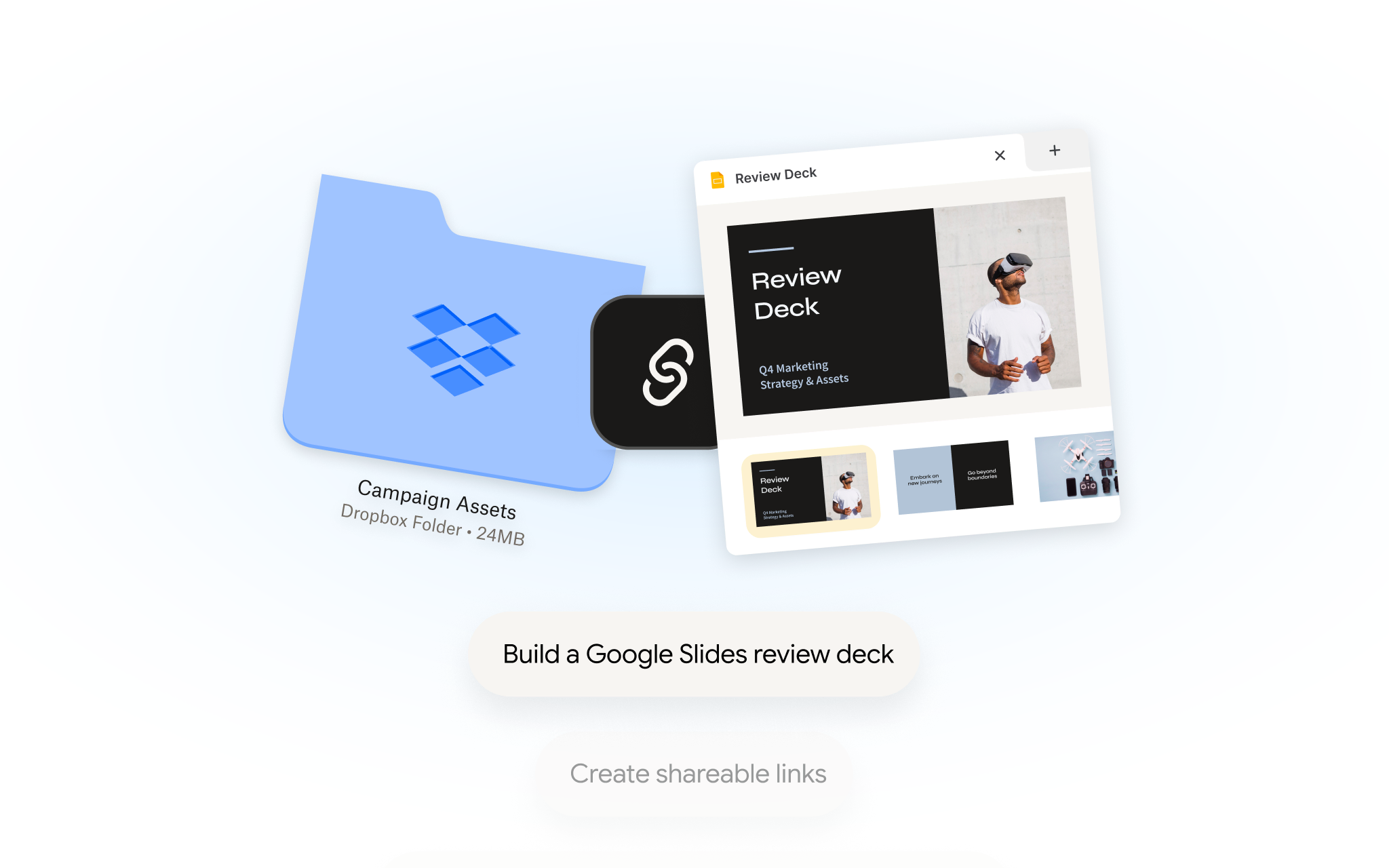
Some work takes more than finding information. It takes organizing all the material behind a project, prepping it to share, and keeping the project moving. Gemini Spark helps you go beyond the conversation, working with Dropbox to organize files, generate shareable links, create file requests, and keep your work on track.
Imagine you’re a freelance designer kicking off a new project. You’ve got a brief to review, reference images and past work to pull together, and new assets still coming in. Rather than sorting it all out by hand, you can ask Gemini Spark to find and summarize the brief, create a project folder, organize your files by stage, set up a file request for missing assets, and generate a shareable link for the final deliverables.
Because Spark works with Dropbox, Dropbox stays the trusted source for your files and project work, helping keep everything from getting scattered across disconnected AI tools. Gemini’s access stays aligned with the files and folders you’re permitted to access in Dropbox. And before taking sensitive actions, like sharing, deleting, or changing permissions, Gemini asks you to confirm before it acts, so you’re always in control.
Getting started
The Dropbox app for Gemini is available to anyone with a personal Google Account who is 18 or older in the US. Gemini Spark is available to Google AI Pro or Ultra subscribers in the US. For this initial release, the Dropbox connected app is available in English only, in the Gemini web app at gemini.google.com, and requires a personal Google Account with Keep Activity turned on.
With Dropbox connected to Google Gemini, you can put the context behind your work to use while Dropbox keeps it all together in one trusted home.
Get started by connecting Dropbox to Gemini. In Gemini, go to Settings → Personal Intelligence → Connected Apps → Dropbox to connect.
Learn more about our partnership with Google Gemini.
Need help? Visit our Help Center to learn more.
The Author