Dropbox brings trusted project context directly into the ChatGPT Library
Published on September 10, 2026
Together with OpenAI, we’re making it easier to bring the context behind your work directly into your AI workflows.
The most useful AI work rarely starts with a single file
Imagine you’re preparing for a client review in ChatGPT. The latest brief is in Dropbox, along with the current presentation, earlier versions, client feedback, supporting research, and approved messaging. Together, those materials provide the context behind the project. But before you can get started, you’re searching for the right sources, checking versions, and bringing them into the conversation one by one.
AI becomes much more useful when it can work from the context behind a task, not just an isolated document. That’s why more customers are connecting their trusted Dropbox content to the AI tools they choose. In fact, usage across Dropbox’s AI integrations has grown more than 13X over the last four months.
We first brought Dropbox into ChatGPT through our Model Context Protocol (MCP)-powered app, making it possible to search and reference Dropbox content and take actions like saving work, organizing files, and creating links for sharing from a ChatGPT conversation.
Now, together with OpenAI, we’re making it even easier to bring the Dropbox context you need directly into your workflow.
Today, we’re introducing a new native Dropbox experience in ChatGPT
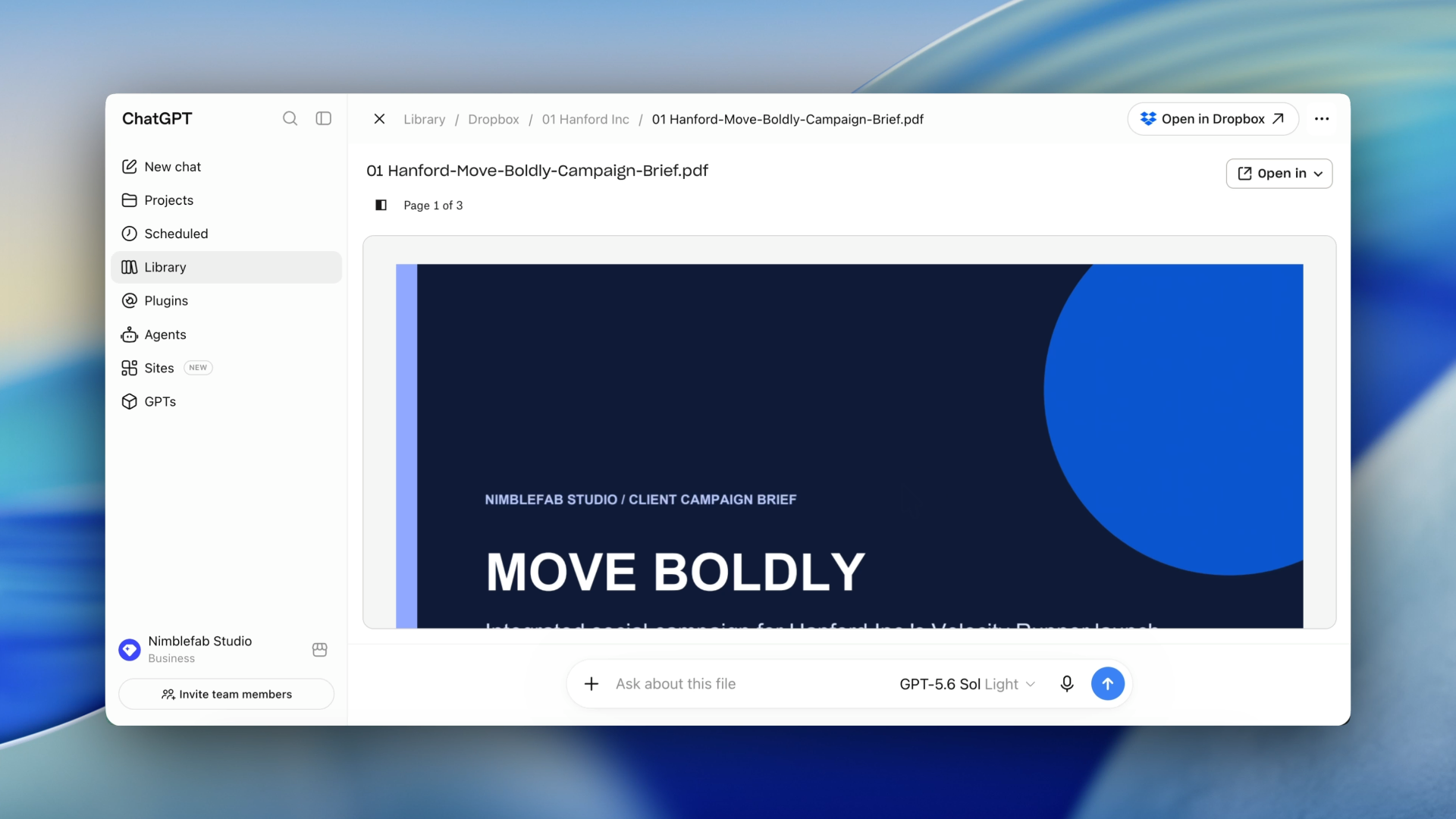
Dropbox is among the first platforms to become part of ChatGPT’s native file experience. Once connected, Dropbox is available directly within ChatGPT’s everyday file flows, giving you a faster way to find the source material behind your work and bring it into the conversation. You can browse and search Dropbox content and folders in Library, choose from recent files, @mention a file in a conversation, add it directly to a prompt, and preview files, including videos, alongside your ChatGPT conversation.
This native experience builds on the Dropbox capabilities already available in ChatGPT. Native discovery and preview make it easier to bring the right source material into your conversation, while the Dropbox app lets you take the next step by saving, organizing, and sharing what you create. The result is more than a shorter path to a file. It’s a more connected path from the context behind your work to the work you create next.
Bring the context you need into ChatGPT
Until now, bringing Dropbox content into a ChatGPT conversation started by @mentioning Dropbox to invoke the app and asking it to find the right file. With the new native experience, you can go directly to the Dropbox file you want to use.
Once connected, Dropbox appears throughout ChatGPT’s native file experience. You can search for a specific file, choose from recent files, browse your Dropbox files and folders in Library, or mention a file directly in your prompt.
But most projects involve more than one document. A client presentation may depend on the original brief, previous versions, customer feedback, research, and approved messaging. A campaign might draw from a creative brief, concept deck, performance results, and multiple rounds of feedback.
With Dropbox in ChatGPT, you can bring relevant sources from across that project into the conversation as you work. Instead of repeatedly finding, uploading, and explaining information that already exists, you can give ChatGPT more of the context behind the task at hand.
“By bringing the files and context people already rely on in Dropbox directly into ChatGPT, we’re making it easier to move from finding information to understanding it, developing new ideas, and taking action — all in one flow,” said Sondra Batbold, Product Lead, Personalization and Context at OpenAI. “This is an important step toward making ChatGPT a more connected place to get work done, while respecting the permissions and controls people already have in place.”
Keep the source beside the conversation
Context is only useful if you can stay connected to the sources behind it. When you bring a Dropbox file into a ChatGPT conversation, you can open a preview of the original file alongside the chat. That makes it easier to ask ChatGPT to summarize a document, explain a section, compare sources, synthesize feedback, or help create something new while keeping the original material in view.
For example, an architect could open the latest project specification beside a conversation and ask ChatGPT to summarize key requirements or explain a technical section. They can refer directly to the original document as they work, verify important details, and continue without repeatedly moving between the source and the conversation.
For detailed, source-heavy work, that connection matters. It helps keep the AI workflow grounded in the material the work came from, and gives people a clear path back to the Dropbox source when they need to verify or continue the work.
Turn existing video into new campaign assets
Video can provide valuable context for creative work, and Dropbox is one of the first platforms in ChatGPT’s native file experience to support previewing video files without leaving ChatGPT. That means you can play videos directly alongside your conversation, without downloading and re-uploading them.
For example, a marketing team could preview a campaign video alongside the creative brief and approved messaging stored in Dropbox. They could then ask ChatGPT to create a new version with a branded end card and updated call to action and save it back to the campaign folder alongside the original source material.
This gives creative and marketing teams a faster way to adapt existing video for new channels, audiences, and campaigns while keeping the project context, source material, and new versions together in Dropbox.
Turn project context into durable work
Finding the right information is only the beginning. Once you’ve brought relevant Dropbox files into ChatGPT, you can use them to compare versions, synthesize feedback, identify decisions, or create something new grounded in those sources.
And the result doesn’t have to remain inside an AI conversation. When the work is ready, you can save it back to Dropbox, organize it in the right folder, and create a link to share with collaborators. Dropbox remains the home for the underlying project files and source material, while the new work has a durable place alongside the context that informed it.
For example, a creative lead could bring a campaign brief, concept deck, and client feedback into ChatGPT to prepare a review recap. Once the recap is ready, they can save it to the campaign folder in Dropbox, where the people working on the next round can find it alongside the original materials and continue from the same project context.
That creates a more continuous workflow: bring trusted project context from Dropbox into ChatGPT, use it to move the work forward, and save what comes next back to Dropbox.
AI is where work starts. Dropbox is where work becomes durable.
Keep access grounded in Dropbox permissions
Trust also means maintaining a clear relationship between AI-assisted work and the sources behind it. Existing Dropbox permissions continue to apply to this experience, so people can only discover and work with files they already have access to through their connected Dropbox account.
That means relevant project and company context can be brought into ChatGPT without changing who has access to the underlying Dropbox files. The source material remains stored in Dropbox, preserving a clear connection between the work happening in ChatGPT and the content behind it.
As AI becomes part of more business workflows, that connection becomes increasingly important: people need useful context, but they also need to know where that context came from and retain a trusted home for the underlying work.
Put your Dropbox context to work in ChatGPT
As AI becomes a place where more work begins, Dropbox is evolving from simply a place where work is stored to a customer-owned layer that helps make trusted context available to the AI tools people choose, and gives the work created with AI a durable place to live. The new native Dropbox experience in ChatGPT is another step in that direction.
You can bring relevant project context directly into your conversation, work from trusted source material, and save what comes next back to Dropbox. The underlying content remains anchored in Dropbox and its existing permissions, while new work can return to the place where it can be organized, shared, and used again.
And because people will use different AI tools for different jobs, we believe that context should remain theirs. Dropbox can provide a consistent home for the source material and resulting work even as the tools people use continue to change.
At launch, the native Dropbox experience is available on the web for ChatGPT and Work, including Enterprise audiences. Mobile availability is coming soon.
To get started, connect Dropbox to ChatGPT, then access your Dropbox files from Library.
The Author